Nassila (ناسيلا) is a desktop app for building a reference list, validating it against CSL rules, running a unified registry check (L1 + L2), and exporting a formatted bibliography in thousands of CSL styles.
Verify your references. Ground your claims.
This guide walks through the main window, how to add and fix references, how verification works, and how to export.
Overview
The app opens to Manuscript (Ouroboros loop) or Bibliography mode via the header. In Bibliography mode: Input (left), Output (center), and Issues plus style controls (right). The header shows counts and global actions; the status bar at the bottom shows progress and connectivity hints.
Typical flow: paste or import → resolve IDs if needed → fix validation/duplicate issues → Verify (online) → pick a CSL style → Export.
The window at a glance
| Area | Role |
|---|---|
| Header | Mode switch (Manuscript / Bibliography), citation/issue summary, Import, Export, Verify, Autocorrect, theme, About, and related actions. |
| Input | Paste plain text, BibTeX, RIS, or CSL-JSON; resolve DOI / PMID / URL from the top row; triggers parsing into rows. |
| Output | One row per reference: formatted preview, type badge, status chips (DOI, Find DOI, etc.), and inline validation lines. |
| Issues | Validation errors, duplicate groups, and (after verify) registry mismatch cards with jump-to-row. |
| Style / sidebar | Choose target journal or CSL style for formatting and export. |
| Status bar | Activity and network-related messages. |
Adding references
Paste text
Paste plain-text references, BibTeX, RIS, or CSL-JSON into the Input panel. Use Parse / the equivalent control to turn the text into bibliography rows in Output.
Tips
- Mixed plain-text lists work; the parser uses heuristics (DOI, journal cues, URLs). If a journal article is misclassified as a generic webpage, a DOI plus Verify often corrects the type after online resolution.
- For best results, prefer structured imports (
.bib,.ris,.json) when you have them.
Resolve identifiers
Use the top row in Input for identifiers: paste a DOI, PMID, URL, or one identifier per line, then Resolve. The app fetches metadata from Crossref, PubMed/NCBI, Open Library, or deterministic webpage metadata resolvers as appropriate.
Webpage & platform citations (Raqim Web)
Nassila 1.5.0 includes a deterministic webpage resolver for web sources, preprints, and platform artifacts:
- Supported platform extractors: GitHub repositories (
owner/repo), Kaggle datasets, Hugging Face models and datasets, Substack articles, Medium posts, and YouTube videos. - Metadata extraction: Extracts Open Graph (
og:*), Dublin Core (dc.*), Schema.org JSON-LD, and standard HTML metadata into structured CSL items (type: 'webpage'). - Fetch webpage metadata: Select a webpage citation row in Output, open Raqim Resolve, and click Fetch webpage metadata to automatically populate title, author/publisher, container name, and access dates (
accessed). - Wayback Machine archive integration: in Raqim Resolve, the "Wayback archive" link appears only when a real snapshot exists and goes straight to that snapshot — no more empty archive searches.
Import files
Click Import in the toolbar or press Ctrl+I. Supported types include .bib, .ris, .json (CSL-JSON), .docx, and .pdf. For DOCX and PDF:
- Maktab Tier A Rust WASM Engine: PDF ingest utilizes
@firecrawl/pdf-inspector-wasmfor 10–20× faster text extraction, structured Markdown headings (# Intro), and vector/heuristic tables (| ... |), with seamless fallback topdfjs-distand Tesseract OCR when needed.
Reading the Output panel
Each row corresponds to one reference. You will see a formatted preview (using the current style), the item type (e.g. journal article, book), status chips on the row (DOI, Find DOI, volume, Needs fix), and any inline validation messages under the citation text.
Per-row actions: use Find DOI when online; read chip colors and inline messages to see what still needs attention. For duplicate rows, open the ... menu on the right to keep or delete an entry. Row order in the list is the order used when you export (especially for numbered styles).
Fixing issues (Issues sidebar)
Validation
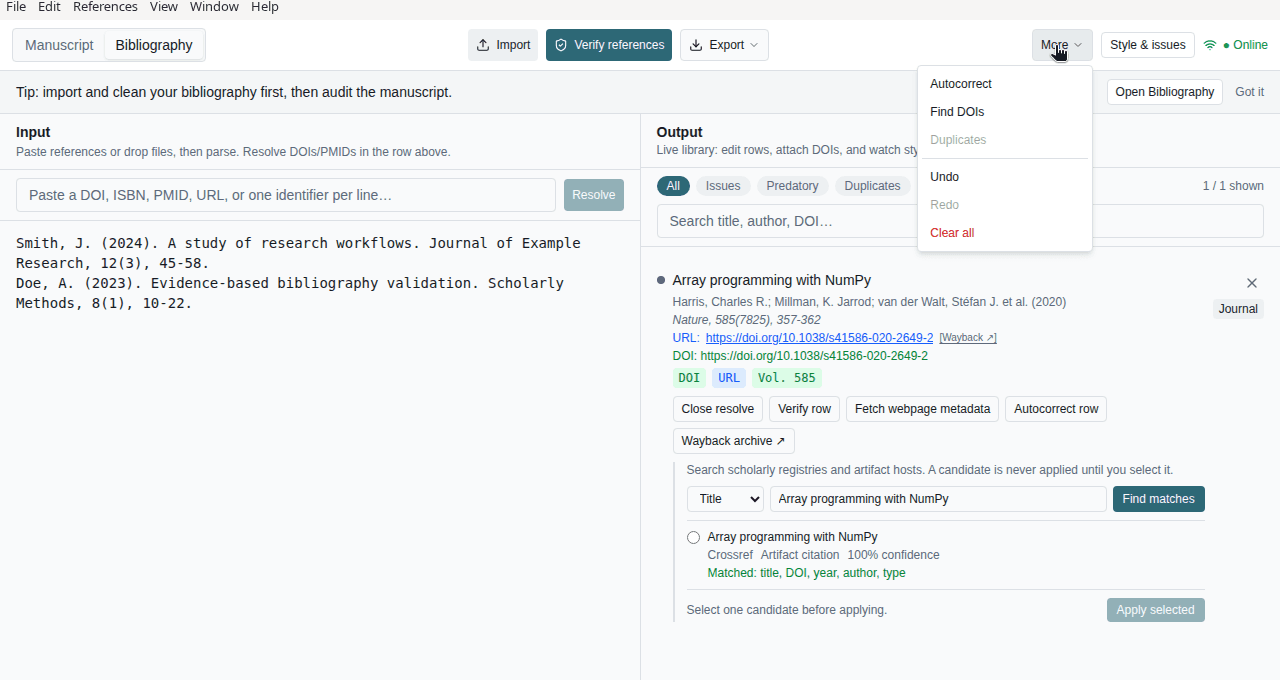
The Issues panel lists missing fields, format problems, and other CSL validation messages. Fix items in the Output panel or use Autocorrect where applicable.
Duplicates
Detect duplicates from the menu/shortcut (Ctrl+Shift+U). Duplicate groups appear in Issues; merge or delete extras so each work appears once.
Autocorrect and DOIs
- Autocorrect (Ctrl+Shift+A) applies safe fixes (normalization, formatting, and similar).
- Find missing DOIs (Ctrl+Shift+D) attempts to discover DOIs where the engine can infer them.
Verifying references (L1 + L2)
When you are online, run Verify references from the toolbar, the References menu (Verify references (L1/L2)…), or Ctrl+Shift+V.
What L1 and L2 mean
- L1 (registry resolution) — Whether the app could anchor the reference to a trusted catalog entry (DOI/PMID resolution, OpenAlex match, or an explicit “grey / insufficient” outcome).
- L2 (metadata alignment) — When L1 found a canonical record, whether your fields match (title, year, journal, volume, pages, etc.).
The run uses one network pass per prioritized row (up to 200 items per action): L1 resolves the row to Crossref, PubMed, or OpenAlex; L2 compares your metadata to that record. Crossref/PubMed rows may be auto-patched when the registry disagrees; remaining differences appear as mismatch cards.
Mismatch cards
When verify finds fields that still disagree with Crossref, PubMed, or OpenAlex after auto-patch, yellow mismatch cards appear in the same Issues panel (title, author, year, field name, your value vs canonical). Click a card to scroll to that row in Output.
Choosing a style and exporting
Pick a CSL style from the sidebar (bundled styles plus support for loading styles from the Zotero CSL repository).
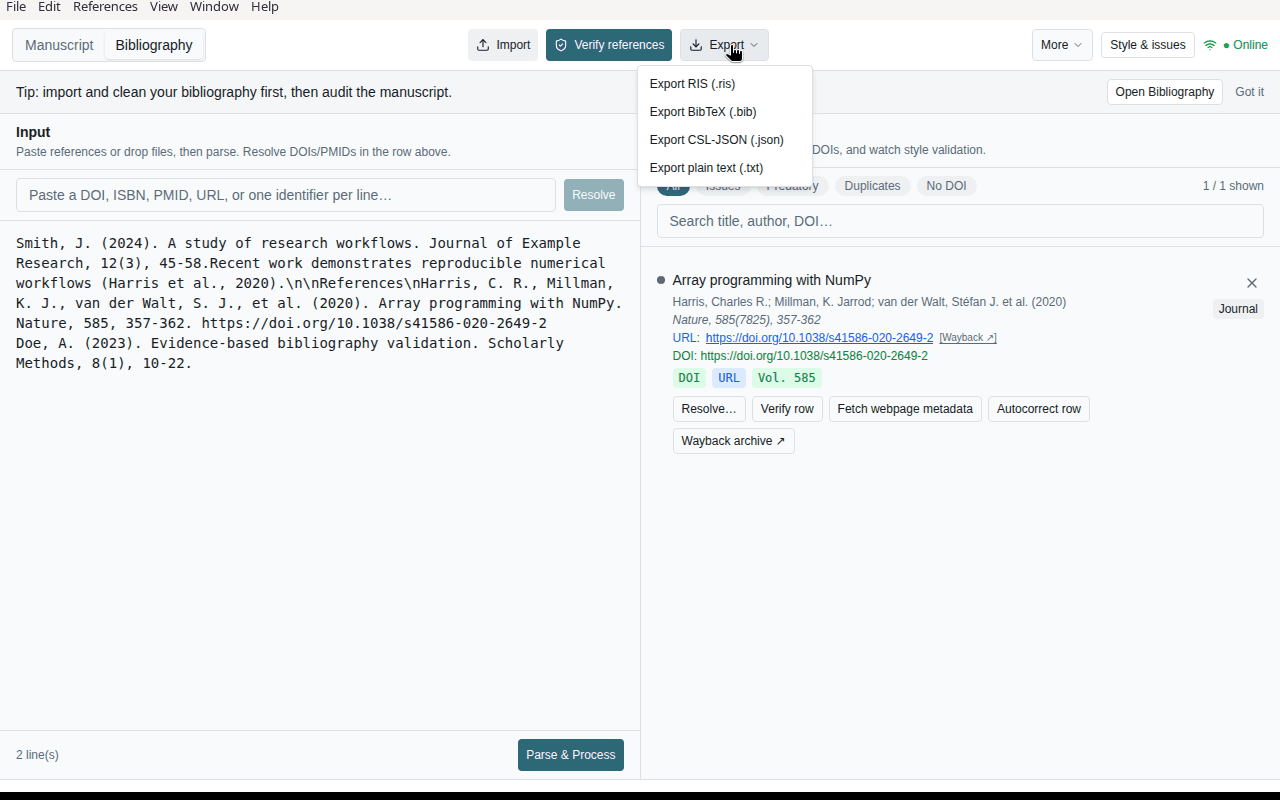
- Export (Ctrl+E) — Export the formatted bibliography (per app prompts and filters).
- Export CSL JSON (Ctrl+Shift+E) — Export the reference data as CSL-JSON.
Settings and About
Use About from the toolbar/menu to see version information, a short description of the workflow, and notes on network usage.
Theme (light/dark) follows your preference where the app exposes it; use the theme control in the toolbar if present.
Network, privacy, and offline use
Outbound services may include Crossref, PubMed/NCBI, OpenAlex, Unpaywall, and Europe PMC when you run verify or manuscript source fetch. Do not paste secrets, credentials, or private unrelated text into citation fields.
Offline: parsing, editing, validation, and export of already loaded data work without the internet. Verify, identifier Resolve, and online enhancement require connectivity.
Related pages
- Keyboard shortcuts
- Troubleshooting
- User guide — Sanad and manuscript workflow